To find a tree, click the Trees tab in the top-left corner of any page on Ancestry and click on the name of a tree.
To move around a tree, put your mouse in a blank space in the tree, hold down the mouse button, and move your hand. The tree will move as your hand moves.
Tree orientation, gallery, search, hints, and navigation
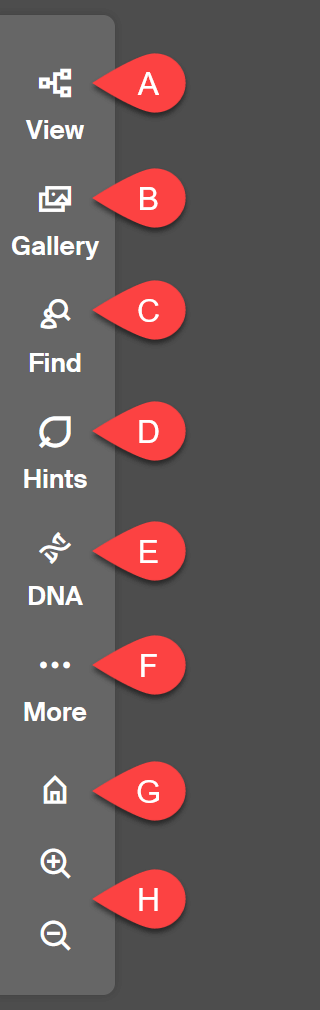
Open a tree to see most tree options. Along the left side of your tree, you'll see these buttons:
-
Tree view: Choose whether to view your family tree horizontally, vertically, or in a fan shape, or see the tree’s facts and events placed on a map. (Read more about tree layouts.)
- Horizontal: View the tree horizontally in a pedigree format, focusing only on direct ancestors. The main person is on the left side, and their ancestors extend rightward.
- Vertical: View the tree vertically in an extended family format to see everyone in the tree, with the home main person focused, their ancestors extending upward and descendants extending downward.
- Fan: View up to 4 generations of a person’s direct-line ancestors arranged in a half-circle or fan shape. Access to a fan chart with more than 4 generations (5-7) and advanced hint, photo, and source filters are available with an active Ancestry Pro Tools Membership.
- Map: View where specific facts and events from your family history took place on a map with an active Ancestry Pro Tools membership.
- Gallery: View the media in the tree. The media can be filtered by type—photos, stories, audio, and video.
-
Find in tree: Search and locate someone in your tree. In the opened side panel, type a person's name in your tree, and select it from the list that appears.
- Filters: see everyone in the tree with a certain tag.
- Home Person: go to the home (primary) person in this tree. The home person in your tree is typically you but you can set the home person to anyone.
- Last Viewed: go to the person whose profile page you last visited.
- List of all people: see a list of everyone in this tree.
- Hints: view a summary of available Ancestry Hints for this tree (like counts and types of Ancestry Hints) and sort them by type and person's name.
- DNA: go to the DNA matches of the person whose DNA results are linked to this tree. You'll only see this button when the tree is linked to someone's DNA results.
- More: See the next section.
- Home person: Return to the home (primary) person in this tree. The home person in your tree is typically you but you can set the home person to anyone.
- Zoom: Zoom in or out on your tree.
More: Tree sharing, viewing options, overview, settings, and printing
-
Tree viewing options:
- Relationship line labels: Show or hide the line labels in the vertical family view that describe the relationship between the focus person and other people in your tree.
- Always view all spouses: Show all spouses or only the default or preferred spouse for all individuals.
- Comments: Show or hide a comment icon when a comment has been made on a person in the tree.
- Dark mode: Choose whether to see your tree with a dark background or a light background.
-
Tree overview:
- Tree overview: View and Edit your tree’s description.
- Recent photos, documents, audio, and videos: View recent media and add photos or documents.
- Summary: See how many people, photos, documents, records, audio and videos are saved to your tree.
- Hints: View totals for all people with hints, all hints, record hints, photo hints, and member tree hints.
- People you’ve invited: See a list of people you’ve invited to your tree, invite family members, and manage invitees.
- Tree settings: View and edit your tree’s name, description, privacy, invitations, and hint preferences. Set the home person and who you are in the tree, or download or delete your tree.
- Invite: Share your tree with others using a shareable invite link, email, or display name.
- Activity: Add tasks, track tree changes, and see recent viewers.
- Print: Print the part of your tree that's showing on the screen.
- Create a keepsake: have your tree printed professionally. You'll be directed to the MyCanvas website, where you'll be able to choose from a family history book, calendar, family tree poster, and more. You'll place and complete your order on their MyCanvas website.
- View prioritized people: See a list of prioritized people in your tree.
- Tree Checker: Available with a Pro Tools membership, Tree Checker helps you find and correct possible errors in your family tree.
Moving around a tree in the horizontal pedigree view
Move up the tree by clicking the arrow to the right of a person whose ancestors you want to view.
Move down the tree by clicking on the name of a child of the leftmost person.
Moving around a tree in the vertical family view
Move up the tree by clicking an arrow above the person at the top.
Move down the tree by clicking an arrow below a person at the bottom.
Viewing a person's profile
To view a person's profile in the tree, click that person, and in the opened window, click Profile.
Viewing a specific person’s tree
To view the family line of someone in your tree, click on the person in your tree, click More options (the three horizontal dots), and select View his/her family tree.