If you need help signing in to your Ancestry account, try signing in with your email address instead of your username or resetting your password.
Changing your username
- Select your Username.
-
Enter a new username and click Update username. If you receive an error message, try another username.
Usernames must:- not be in use
- be between 5 and 24 characters
- only contain alphanumeric characters (A-Z, 0-9), hyphens (-), underscores (_), and periods (.)
- not have other special characters or symbols (for example: %, #, @)
- If prompted, verify your account by selecting Send code via email or Enter current password.
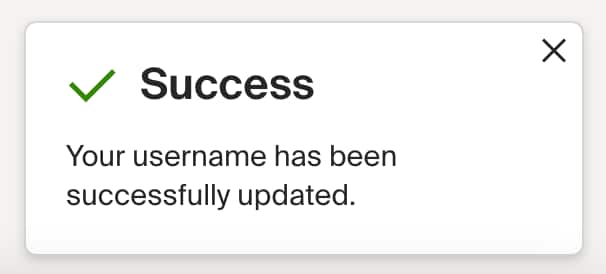
- Success! Your username has been updated.
Related issues
- Updating Your Name on Your Ancestry Account
- Setting Your Name or Username for Public View
- Changing the Name, Birth Year, or Assigned Sex at Birth for Your https://internalancestrysupport.zendesk.com/hc/en-us/articles/53933316730515-/hc/en-au/articles/53933330544787-Update-Q2-2022-218-New-Communities /hc/en-us/articles/53933347838227-/hc/en-us/articles/53933324412691-Test